
Decluttering your digital life is just as important as tidying your home. Our phones, computers and online accounts can quickly become cluttered with files, apps, emails and notifications, making it harder to stay organised and focused.
Taking a little time to tidy your digital world can improve productivity, reduce stress and even make your devices more secure.
Why decluttering your digital life matters
Reduces stress – When you have too many files, emails, and notifications, it can feel overwhelming. By decluttering, you can regain control and lighten that mental load a bit.
Improves productivity – If you have a clean desktop, organised folders, and fewer distractions, it will make it easier to find what you need and focus on important tasks.
Saves storage space – By deleting unused apps, programs, old files, and duplicate photos, you will free up space on your devices, making them run more smoothly and efficiently.
Improves online security – Old accounts, weak passwords, and outdated apps can be a security risk. Cleaning up your digital footprint helps protect your personal information.
Encourages healthier technology use – Decluttering your apps helps you become more intentional about how you spend time online and reduces the time you spend mindlessly scrolling.
Simplifies communication – Unsubscribing from unnecessary emails and organising your inbox makes it easier to manage messages and stay on top of what matters.

Decluttering your digital life
Clean up devices
- Delete apps and files that you don’t use anymore.
- Organise your documents into clearly labelled folders.
- Remove duplicate photos and videos.
- Empty the recycle bin, temporary files and old downloads regularly.
- Keep your desktop tidy by only have essential shortcuts visible.
Organise your email
- Unsubscribe from newsletters and promotional emails that are no longer needed.
- Create folders or labels for important messages.
- Delete your old conversations and spam folder you no longer need.
- Spend a few minutes each week to manage your inbox.
Review online accounts
- Close accounts that you no longer use.
- Update your passwords and enable two-factor authentication for security.
- Consider using a password manager to keep login details organised.
Tidy Your Social media
- Unfollow, mute, or hide accounts that no longer add value or positivity.
- Check the number of your social media accounts. Facebook, Instagram, Snapchat, Twitter, the list could be endless! Do you use and need them all?
- Review your privacy settings on each platform to control what information is shared.
- Think about taking regular breaks from social media.
Organise cloud storage
- Delete any outdated backups and unnecessary files.
- Sort the remaining documents into folders by category or date.
- Make sure all your important files/documents are safely backed up.
Simplify your digital habits
- Turn off unnecessary notifications to reduce distractions.
- Set screen time limits or schedule “offline” hours.
- Many devices and social media apps have a feature that reminds you after you’ve spent a certain amount of time on them.
Maintain regularly
- Digital clutter soon builds up again, so schedule a digital tidy-up every few months to keep everything organised. It can soon mount up again!

Computer declutter checklist
- Delete unused apps and programs
- Remove any unwanted documents, photos and music
- Clear your downloads folder
- Keep your desktop simple
- Delete any temporary files – in the search box at the bottom of the screen, type temporary files, and it will bring up your storage with cleanup recommendations
- Empty the recycle bin
- Update your passwords and security settings
- Restart your computer to refresh the system
Email Checklist
- Empty your inbox
- Unsubscribe from unwanted emails
- Organise messages into folders with labels like housing, bills, receipts and archive
- Empty your deleted items folder
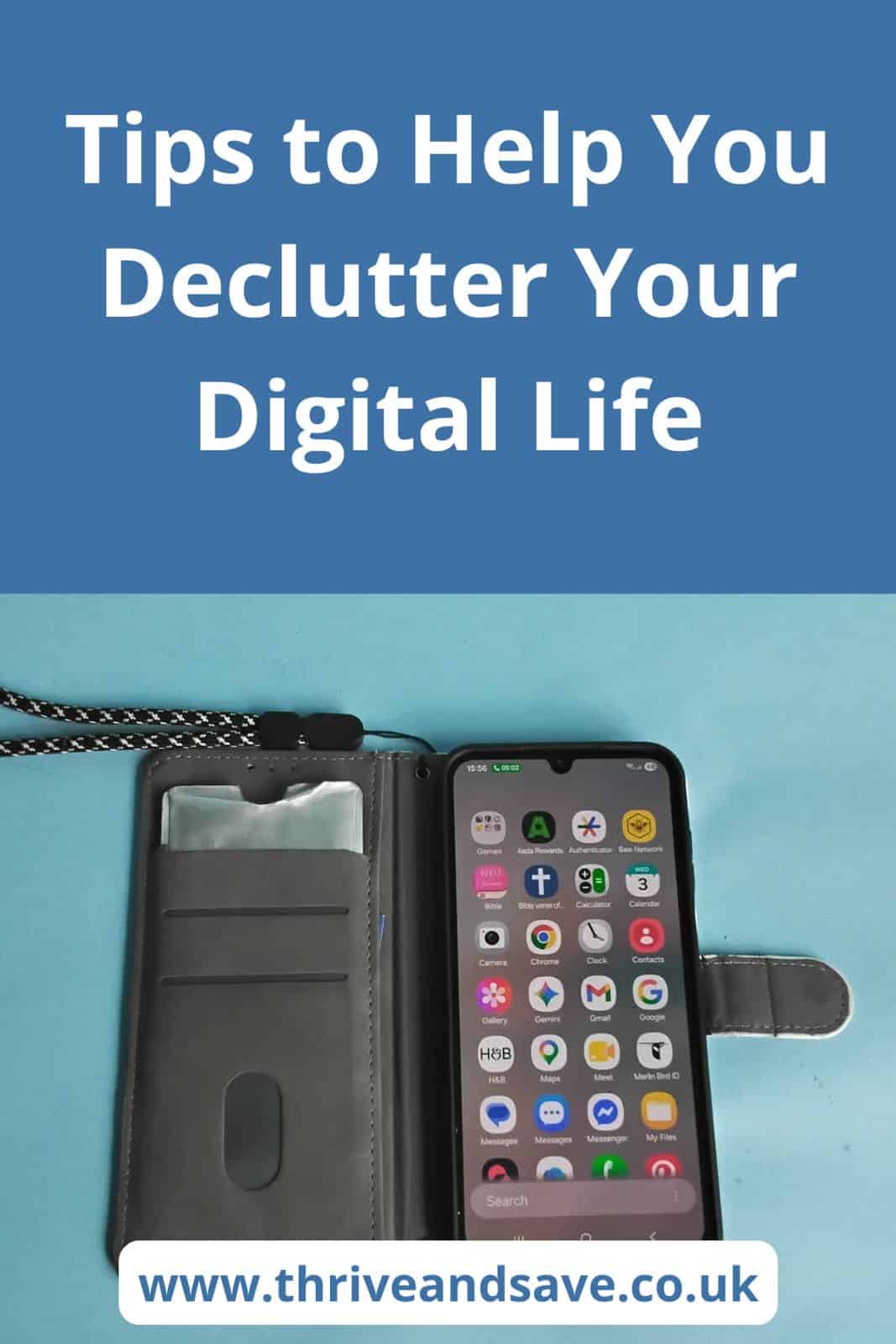
Phone declutter checklist
- Delete unused apps and old photos
- Clear your storage and memory (on my phone, this is under settings, device care, but I think each phone is slightly different)
- Clear out your downloads folder
- Turn off non-essential notifications
- Organise apps into folders like social, work, and games
- Empty your phones trash folder
- Update your passwords and security settings
- Restart your phone to refresh the system
Social media Checklist
- Close any social media apps and accounts you don’t use
- Unfollow, unfriend, mute, or hide any accounts that bring you down
- Review your privacy settings
Share this guide with your friends and family to help them declutter their digital lives too!

